
Easy shares with rclone
When you need to mount a folder from a remote machine (like a NAS) it's tempting to reach for NFS or SMB, but maybe it's worth a look at rclone instead.

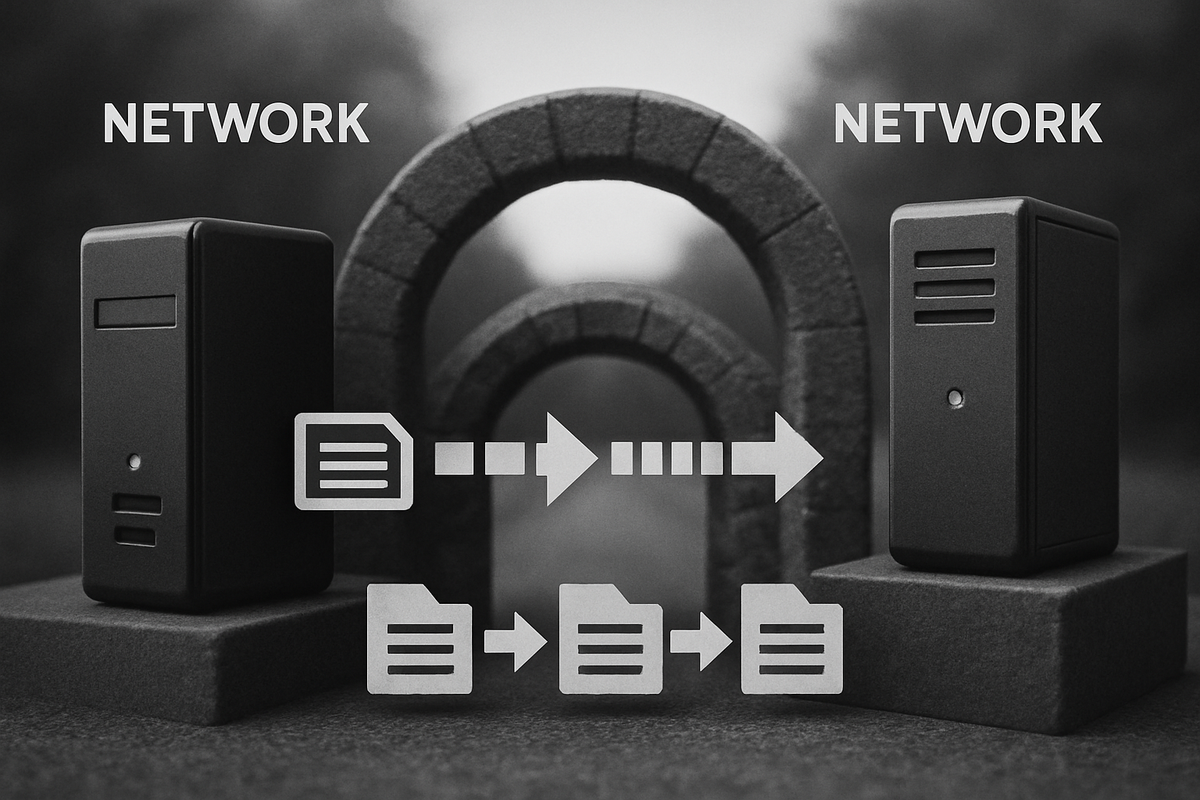
When you need to mount a folder from a remote machine (like a NAS), the obvious choices are NFS or SMB. But depending on your network setup, those aren’t always ideal. If you’re running services across segmented networks—or in my case, across a LAN and a DMZ—poking NFS/SMB-shaped holes through firewalls can feel… unwise.
I run Plex in my DMZ and keep all my media on a secure LAN-attached NAS. Both systems are on my Tailnet via Tailscale, and since Tailscale is fantastic at punching through firewalls, I thought:
Why not just mount NFS over Tailscale?
Turns out there are many reasons. NFS is finicky at the best of times, and running it across a VPN is asking for intermittent sadness. Plex would regularly lose its mind. The mount would hang, and I would question my life choices.

Fortunately, there’s a vastly better option: rclone.
rclone can mount remote filesystems over SFTP, which:
- supports random access reads (Plex-friendly),
- performs well over unstable or high-latency links (like VPN paths),
- and works with basically any NAS that exposes SSH (TrueNAS does this out-of-the-box).
So… let’s do this.
Install rclone and prerequisites
Ubuntu includes rclone in apt, but it’s typically outdated. Here’s a cleaner install:
# Install FUSE (required for rclone mount)
sudo apt install fuse3

# Install latest rclone directly from upstream
curl https://rclone.org/install.sh | sudo bash

# Optional: allow non-root users to perform FUSE mounts
echo "user_allow_other" | sudo tee -a /etc/fuse.conf
Create an SSH keypair
You'll need a keypair for your SFTP connection:
ssh-keygen -t 2d25519 -f nasmountYou'll need the private key all smushed together in a single line for rclone. They provide this one-liner to do that.
awk '{printf "%s\\n", $0}' < nasmountAnd of course, you'll need to add your public key nasmount.pub to the SSH authorized keys for your user on the NAS.
Configure rclone
You can run rclone config interactively, or create the config file (~/.config/rclone/rclone.conf) manually:
[mynas]
type = sftp
host = mynas.my-tailnet.ts.net
user = media
key_pem = -----BEGIN OPENSSH PRIVATE KEY-----\nb....IDBA==\n-----END OPENSSH PRIVATE KEY-----\n
shell_type = unix
md5sum_command = none
sha1sum_command = none
/root/.config/rclone/rclone.conf
Now test the connection:
rclone ls mynas:If you see a directory listing, you’re good.
Create a systemd service to mount automatically
Here’s a working systemd unit file that ensures the volume is mounted on boot.
rclone mounts are not treated as real filesystems by systemd. That means:
- systemd does not understand that
/mnt/media/plexis critical for other services - docker may start before the mount is ready (this was annoying because then docker created empty folders in
/mnt/media/plex, and rclone refused to mount over a non-empty directory) - the service won’t be auto-stopped if the mount disappears
So our unit file needs a few protective measures:
After=network-online.target tailscaled.service
Ensures the mount runs after Tailscale and the network stack are ready.
(If you mount before the Tailnet link exists, rclone hangs indefinitely.)
Before=docker.service
Forcing order: mount first, containers later. (note: we need to also tell the Docker service to wait for our mount to exist - below)
Restart=on-failure
rclone can drop connections; this ensures systemd retries.
ExecStop=/usr/bin/fusermount3 -uz
Cleanly unmounts the FUSE filesystem so systemd doesn’t leave ghosts.
[Unit]
Description=Rclone Mount for Media
Documentation=https://rclone.org/commands/rclone_mount/
After=network-online.target tailscaled.service
Wants=network-online.target
Before=docker.service

[Service]
Type=simple
User=root
Group=root

ExecStart=/usr/bin/rclone mount mountdoom:/mnt/Tank/Media /mnt/media/plex \
    --config=/root/.config/rclone/rclone.conf \
    --uid=9999 \
    --gid=9999 \
    --umask=002 \
    --allow-other \
    --vfs-cache-mode=full \
    --vfs-cache-max-size=5G \
    --vfs-read-chunk-size=4M \
    --buffer-size=16M \
    --poll-interval=60s \
    --dir-cache-time=72h \
    --log-level=INFO \
    --log-file=/var/log/rclone-media.log

ExecStop=/usr/bin/fusermount3 -uz /mnt/media/plex
Restart=on-failure
RestartSec=5

[Install]
WantedBy=multi-user.target
/etc/systemd/system/rclone-media.service
rclone’s SFTP backend supports random seeking, but doing it over SSH is slow without caching.
So the key flags are:
--vfs-cache-mode=full
This is required for Plex.
It allows buffering, read-ahead, and random seek support.
--vfs-cache-max-size=5G
Limits the local on-disk cache.
5G is conservative—you can safely use 20–50GB for heavy Plex libraries.
--buffer-size=16M
How much rclone reads ahead per file handle.
Higher = smoother seeks.
--vfs-read-chunk-size=4M
rclone fetches file chunks incrementally to avoid pulling entire files unnecessarily.
--dir-cache-time=72h
Caches directory listings for 3 days.
Critical for large libraries: rescanning SFTP directories constantly is slow.
With these, Plex behaves a lot nicer.
But wait. It's still starting Docker before the mount is up?!
I also updated my docker.service to wait for the actual mount at /mnt/media/plex. The Before=docker.service directive in the rclone unit only ensures that systemd starts the rclone service first—it does not guarantee that the mount is finished and ready by the time Docker launches.
To fix that, we explicitly tell Docker to wait for the mount itself by adding a RequiresMountsFor= directive to its unit override.
systemctl edit docker.serviceAdd:
[Unit]
RequiresMountsFor=/mnt/media/plex
Enable and start the service
sudo systemctl daemon-reload
sudo systemctl enable rclone-media
sudo systemctl start rclone-media
systemctl status rclone-media
And that’s it. Your Plex box now mounts the NAS reliably over Tailscale using SFTP. In my experience, this setup is dramatically more stable than NFS over VPN—and significantly easier to reason about.
Enjoy!